
Creating & Managing UBH Sales and Deals
Learn how to start a UBH sale from a HubSpot contact, complete the required information in the UBH account portal, and review the resulting deal in HubSpot.
When should I start a sale?
The deal process begins at the sale/application stage — not at the first inquiry.
Start with the contact
Start with the contact. Complete and submit the sale in the UBH portal. HubSpot creates the deal through the integration. Do not manually create a separate HubSpot deal.
For this rollout, UBH’s deal process begins at the sale/application stage, when the customer reaches the point of completing the contract or loan application paperwork required by UBH. An inquiry, visit, or interested prospect alone is not the trigger for creating a deal.
Continue managing pre-sale conversations, notes, tasks, and follow-up on the contact record.
- UBH uses “sale” for an early contract/application milestone.
- A sale does not mean the loan is approved, the transaction has closed, or the home is complete.
- A separate pre-sale pipeline was discussed as a possible future enhancement. It is not part of this training.
Before you start
Check these before you open the new-sale process.
- You have opened the correct customer’s HubSpot contact record.
- The customer has reached the appropriate sale/application milestone.
- You have the required customer paperwork and information.
- You know the correct design center/office and salesperson.
- Your design center has been enabled for the HubSpot integration.
- The contact does not already show the sale you intend to create.
Sale already exists?
If the sale already exists, open it and continue working with that record. Do not start another sale to resolve a missing deal or an integration issue.
Step by step: create the UBH sale
From the contact’s Catch up tab through Submit Sale.
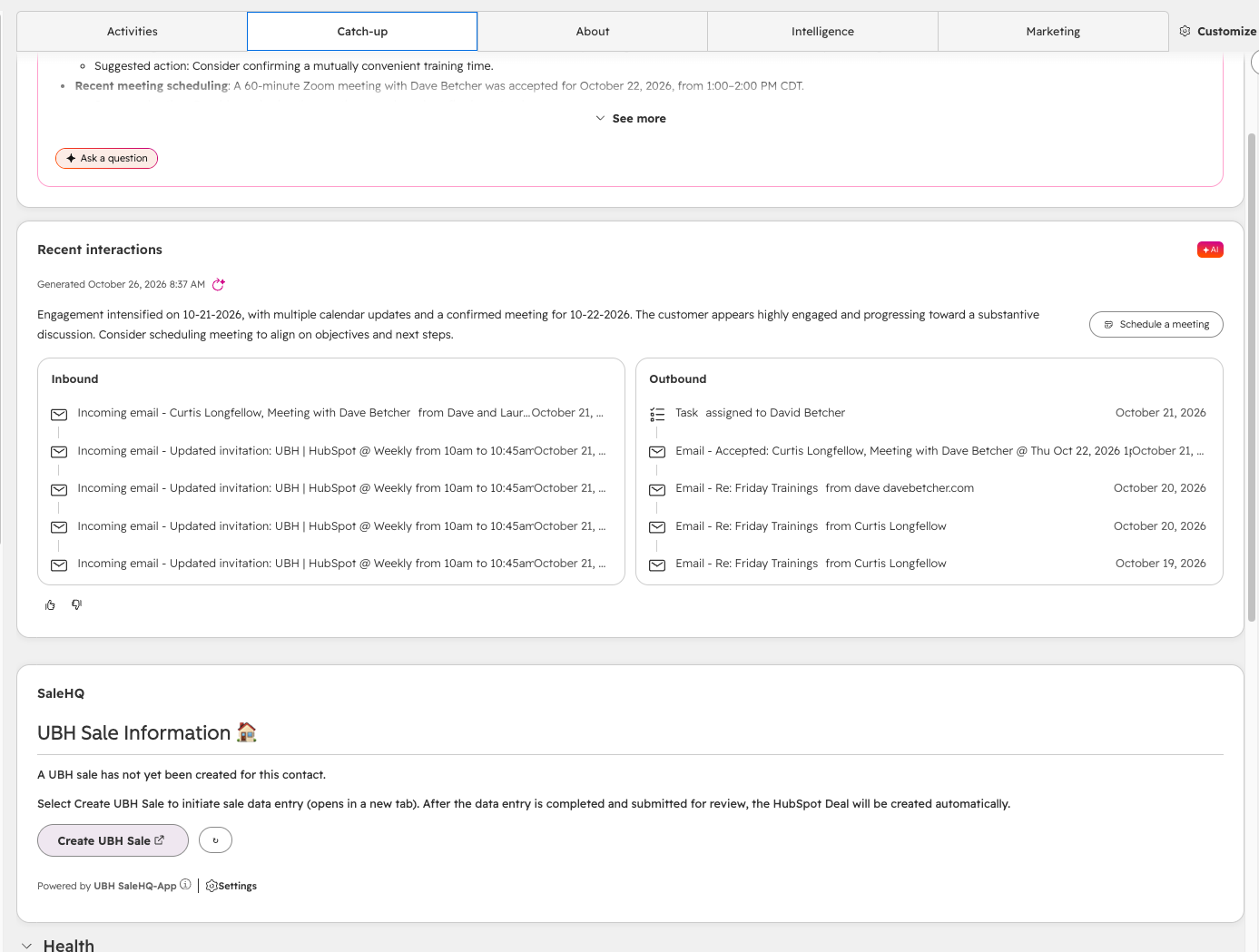
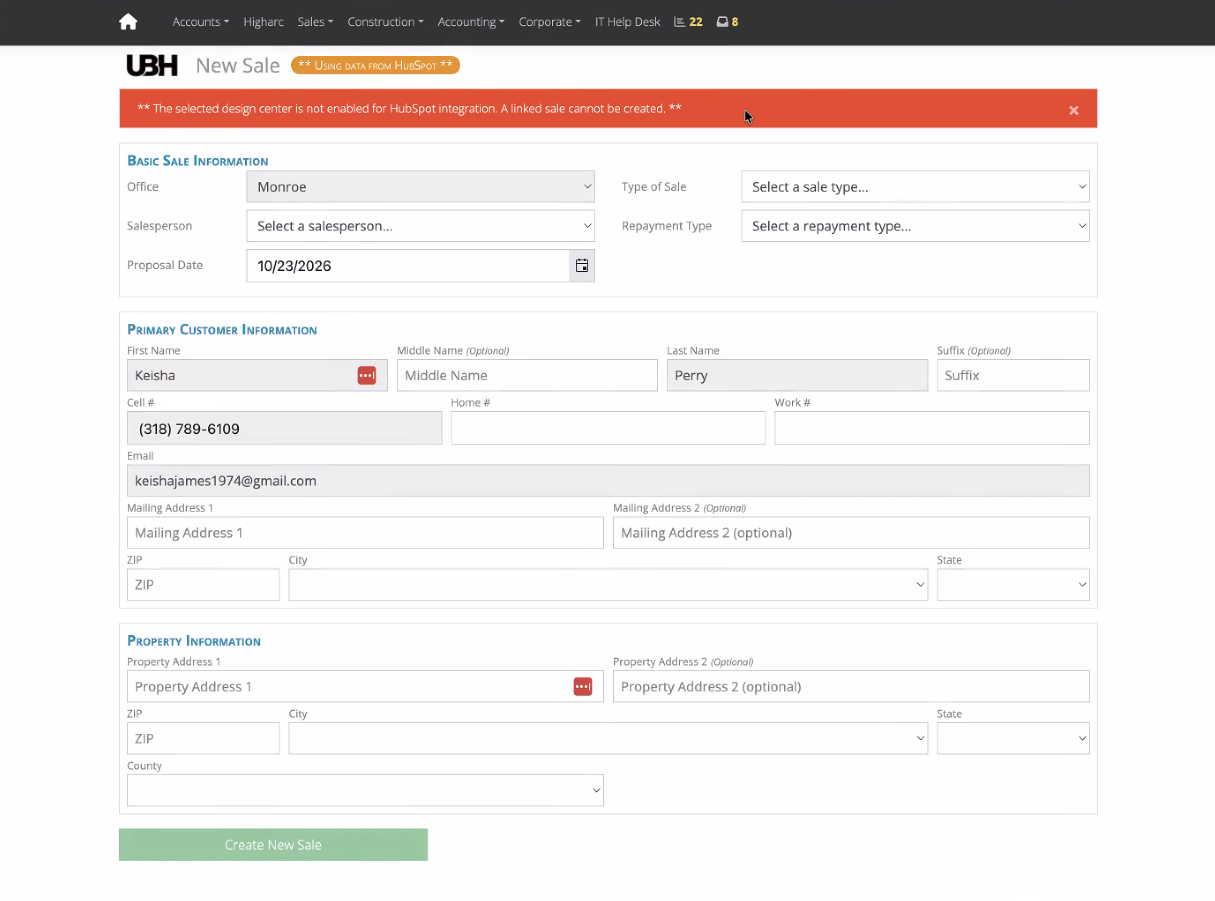
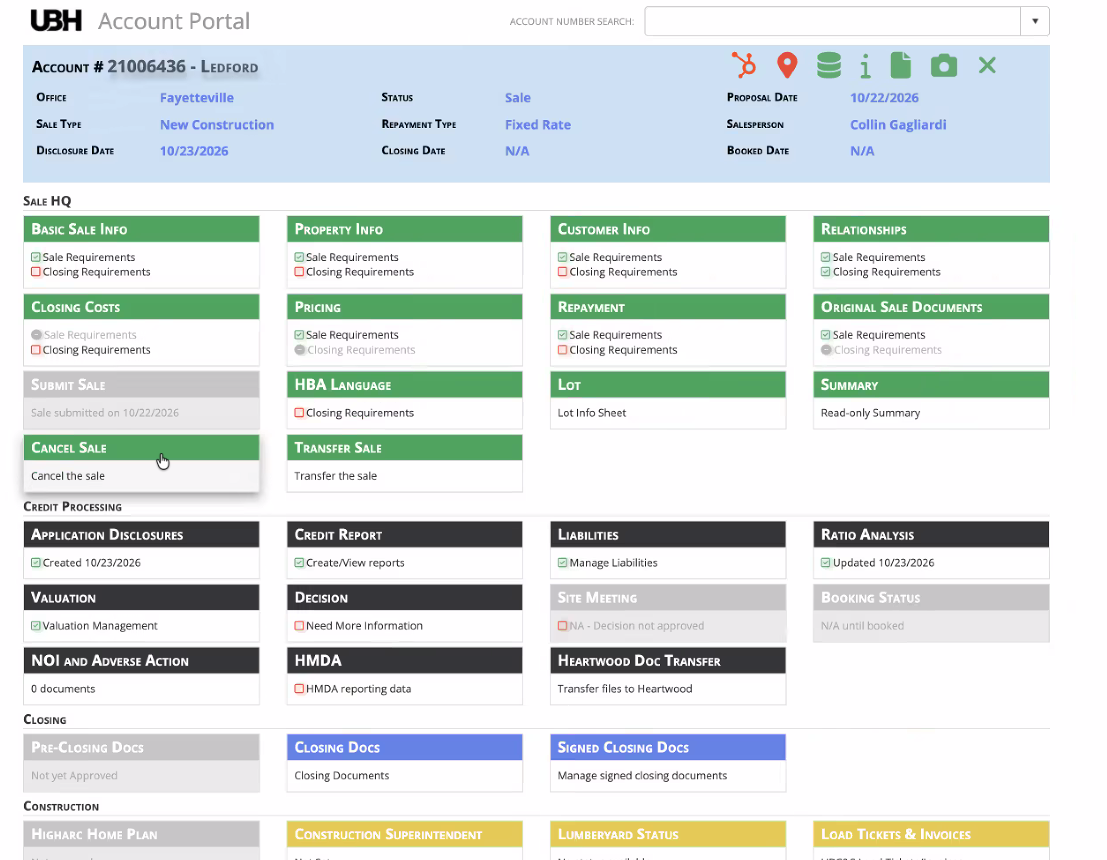
Create New Sale is only a holding record
Creating the initial record does not complete the submission or create the finished HubSpot deal. Submit Sale is the integration trigger that creates the HubSpot deal.
Deal not showing?
If the deal does not appear, use the troubleshooting guidance below. Do not manually create a replacement deal.
What happens after submission?
The integration creates the deal and links it back to the contact.
The integration creates a HubSpot deal and links the sale information back to the contact. The demonstrated setup populates information such as:
- UBH account number.
- A link to the UBH account portal.
- Design consultant.
- Design center.
- Region.
- Deal owner.
Use the account number
The account number is an important UBH reference. Use it when discussing or troubleshooting an existing sale.
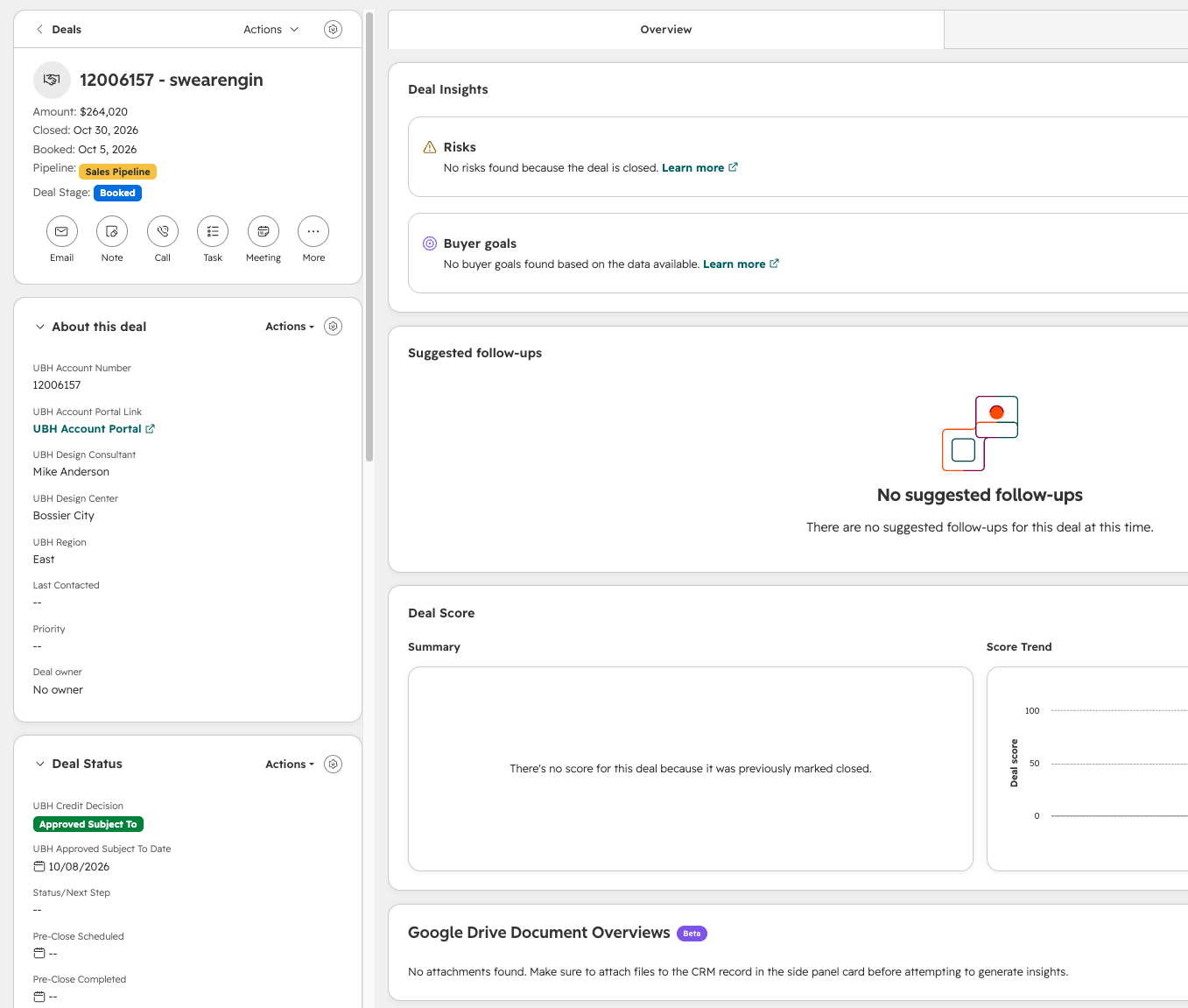
The UBH Sale Information card changes after the sale is created. Instead of offering the same create-sale action, it displays sale information and an option to view the sale in the UBH portal. The Deals card on the contact record displays when a deal is associated — a contact without an associated deal may not show that card.
How to open an existing sale
Get back into a sale without creating a new record.
- From the contact: open Catch up, locate UBH Sale Information, and use the available view-sale action.
- From the deal: open the deal and use its UBH account portal link.
Continue working with the existing sale and its associated deal. Do not create another record to access an existing account.
How deal stages are updated
Stages are driven by UBH portal information, not manual dragging.
UBH portal information is pushed into HubSpot. Relevant HubSpot fields and portal updates help determine the deal’s pipeline stage. The workflow named “Deals Updated” manages stage changes using the configured criteria.
Examples discussed during the process review included:
- Credit decisions.
- Survey information.
- CAD plan information.
- Other required progress fields.
Do not move deals manually
Keep the information you are responsible for accurate and follow the assigned UBH process. Do not manually move a deal just to make its stage look correct. If the stage seems wrong, ask your manager or CRM administrator to review the underlying information and workflow.
Credit decisions are not closings
A credit decision such as “Approved subject to” is not the same as a completed closing.
Handling cancellations
Cancellations go through UBH’s portal process.
UBH uses a manual cancellation process for situations such as a customer withdrawing, and an automatic cancellation process connected to UBH’s lending procedures. The intended HubSpot destination for cancelled deals is the “Canceled/Lost” stage.
- Follow UBH’s approved cancellation procedure.
- Ask your manager if you are unsure who should process the cancellation.
- Do not delete the contact or deal to represent a cancellation.
- Do not independently change credit decisions or issue lending notices.
Implementation status
At the October 23, 2026 process review, the automatic cancellation integration was still being completed. Confirm its live status with the UBH administrator before relying on automatic updates.
Customers with a secondary applicant
Secondary customers do not fully sync back to HubSpot.
The current integration does not provide automatic synchronization of all secondary-customer relationships back to HubSpot. When a name brought into the portal contains two people:
- Review and correct the primary customer’s name in the UBH portal.
- Add the secondary customer using the UBH portal’s secondary-customer process.
- Do not assume this creates or associates a separate HubSpot contact automatically.
Need more associations?
Ask the administrator for guidance if additional HubSpot associations are needed.
Troubleshooting
Expand a question for the answer.
›I cannot find Create UBH Sale.
Confirm that you are on the correct contact’s Catch up tab and looking at UBH Sale Information. If the contact already has a sale, the card may show a view-sale action instead. If neither appears, ask your administrator to check the setup and your access.
›I see a red banner or an integration warning.
Design centers must be enabled for integration. Ask your administrator to confirm the design center is enabled and review the warning before proceeding. Do not bypass it by manually creating a deal.
›I selected Create New Sale, but there is no HubSpot deal.
Creating the initial portal record is only the first step. Complete the required portal sections and select Submit Sale.
›I submitted the sale, but the deal is not showing.
Confirm that the sale was submitted successfully, then refresh the HubSpot contact. If it is still missing, contact your administrator with the contact link, UBH account number if available, and the submission details. Do not submit a duplicate sale or manually create another deal.
›The deal is in an unexpected stage.
Ask your administrator to review the underlying fields, portal updates, and the Deals Updated workflow. Do not repeatedly override the stage.
›The customer’s cancellation is not reflected in HubSpot.
Confirm that the cancellation was processed through the approved UBH procedure. Ask your administrator to check the integration and whether the relevant cancellation automation is live.
›The secondary applicant is missing in HubSpot.
Secondary-customer information entered in the UBH portal does not currently sync back as a complete HubSpot association process. Ask your administrator for the approved handling.
Quick checklist
Run through this before and after every submission.
Before submission
After submission
Final reminder
Create the sale from the contact. Complete the portal requirements. Submit the sale. Verify the deal in HubSpot.
Five Daily Habits
- 1Review your Sales Workspace every morning.
- 2Respond to new contacts promptly.
- 3Log meaningful prospect communication.
- 4Keep contact and deal information current.
- 5Always create the next follow-up task.
“Preparation creates confidence. Consistent follow-up creates results.”